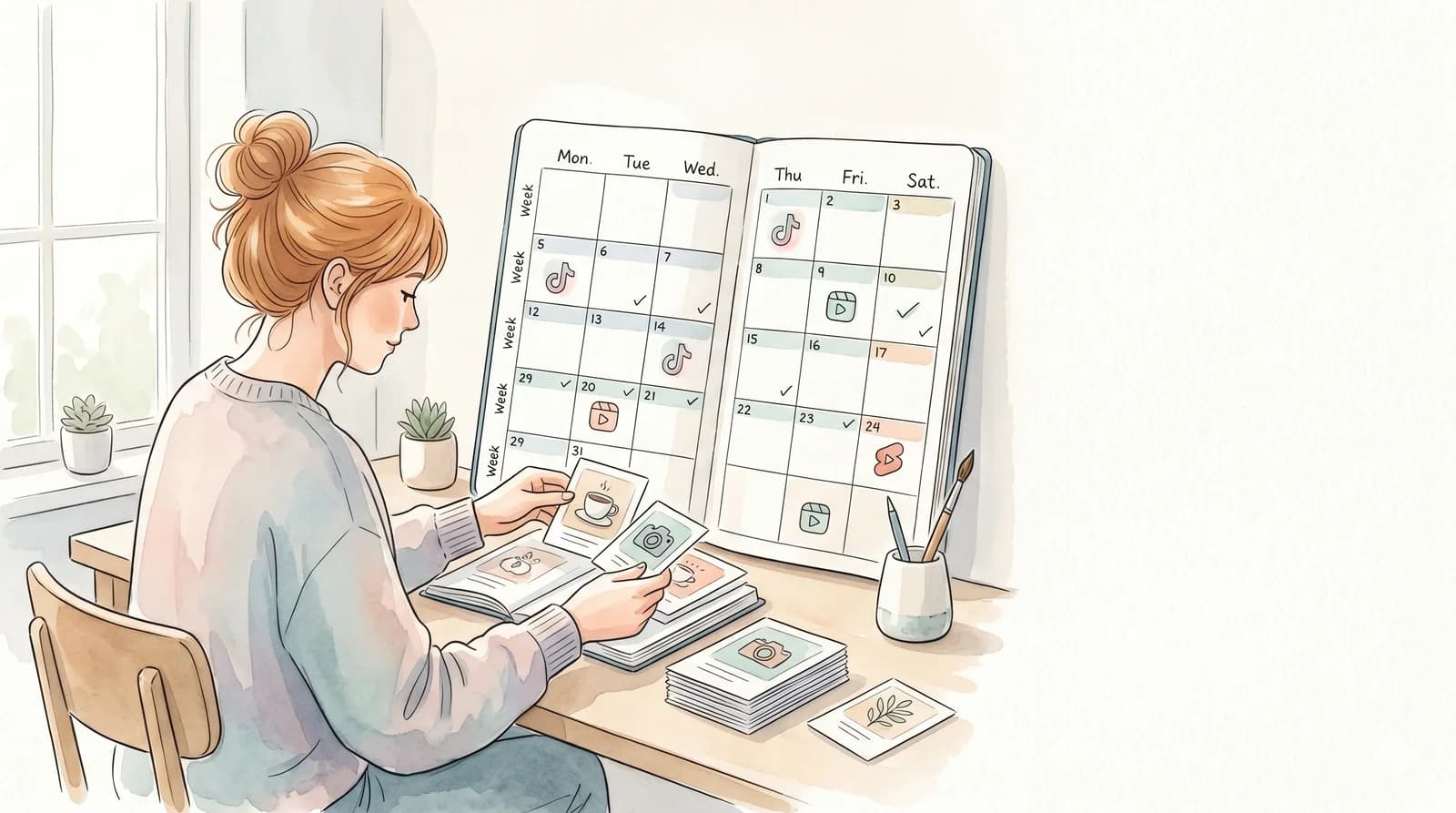

To bulk schedule videos, upload all your clips to a multi-platform scheduler, assign each to the right channel, set your posting times, and let it run — no manual logging in required. Done right, one 90-minute session fills 3–4 weeks of daily posts across TikTok, Instagram Reels, and YouTube Shorts.
Why Bulk Scheduling Videos Changes Everything
Posting consistently is the single biggest lever for algorithmic growth on short-form platforms. But logging into TikTok at 7am, Reels at 9am, and Shorts at 8am every single day is unsustainable.
Bulk scheduling solves this. Instead of posting one clip at a time, you batch your entire content calendar in a single session — then step away. The scheduler handles distribution while you focus on creating.
Who this is for: content creators managing more than one account, social media managers running brand channels, and anyone who wants consistent posting without daily manual work.
What to Prepare Before You Bulk Schedule
Skipping prep is the most common reason bulk scheduling sessions fall apart mid-way. Get these ready before you open any tool.
Your Content Library
- Clips already exported — final MP4 files, cropped to 9:16 (1080×1920 for TikTok/Reels, 1080×1920 for Shorts). Do not mix aspect ratios.
- Named by topic or date — something like
2026-07-10-gout-tip-1.mp4beatsfinal_v3_FINAL.mp4when you're sorting 30 clips at once. - Cover thumbnails — Instagram and YouTube Shorts let you set a custom thumbnail. Prepare them in advance so you're not doing it per-video inside the scheduler.
Captions and Hashtags
Write all captions before the scheduling session. Use a spreadsheet or doc with one row per video:
| Column | What to include |
|---|---|
| Video file | Exact filename |
| Caption | Full text including line breaks |
| Hashtags | Platform-specific (see below) |
| Posting time | Date + time in your target timezone |
| Platform | TikTok / Reels / Shorts |
Hashtag guidance by platform:
- TikTok — 3–5 targeted hashtags. TikTok's algorithm is keyword-driven; stuff captions, not hashtag lists.
- Instagram Reels — 5–10 hashtags. Mix broad and niche. Instagram still indexes hashtags for discovery.
- YouTube Shorts — hashtags matter less. Focus on keyword-rich titles and descriptions instead.
Account Access
Make sure your scheduler already has connected, authorized accounts for every platform you're posting to. OAuth re-authentication mid-session is a session killer.
Step-by-Step: How to Bulk Schedule Videos
Step 1: Connect Your Accounts
In your scheduling tool, connect TikTok, Instagram, and YouTube accounts before importing any videos. Most platforms require re-authentication every 60–90 days — check that all tokens are valid.
If you manage multiple accounts per platform (e.g., two TikTok channels), authorize each one separately. Label them clearly inside the tool.
Step 2: Import Your Clips in Bulk
Upload all your MP4 files in one batch. Good schedulers let you drag-and-drop an entire folder. During import:
- Verify each clip plays back correctly in the preview
- Flag any that fail to upload — these are usually oversized files or wrong codecs
File size limits by platform:
| Platform | Max file size | Max video length |
|---|---|---|
| TikTok | 4 GB | 10 minutes |
| Instagram Reels | 1 GB | 15 minutes |
| YouTube Shorts | 256 MB | 60 seconds |
Compress any files that exceed limits before importing. H.264 MP4 is universally compatible.
Step 3: Assign Captions, Hashtags, and Thumbnails
Paste your pre-written captions from the spreadsheet. Most schedulers support bulk caption editing — apply a caption template to a batch, then customize per video.
Set thumbnails on Instagram Reels and YouTube Shorts. TikTok auto-selects a frame, but you can override it.
Step 4: Set Your Posting Schedule
Assign posting times per platform. Use a consistent cadence rather than random times:
| Platform | Recommended frequency | Starting times (your local timezone) |
|---|---|---|
| TikTok | 1–3× per day | 7am, 12pm, 7pm |
| Instagram Reels | 1–2× per day | 9am, 6pm |
| YouTube Shorts | 1× per day | 8am, 3pm |
Timezone matters. Set your scheduler's timezone to match your primary audience — not your own location if they differ. A post scheduled for 7am EST will go live at 7am EST regardless of where your server is. Confirm the displayed time is in the right timezone before finalizing.
Most schedulers let you set a "posting calendar" — define your slots once, and new videos auto-fill the next available slot.
Step 5: Review and Confirm
Before hitting publish-all:
- Scroll through the queue and spot-check 5–10 posts at random
- Confirm each video is assigned to the correct platform and account
- Verify posting times are not clustered (e.g., three TikToks in the same hour)
- Check that no caption is missing or contains placeholder text
Once confirmed, submit the entire queue. Depending on the tool, it either publishes directly or queues for the scheduler to dispatch at the set times.
Step 6: Monitor the First 48 Hours
After your first bulk session, watch the queue actively for the first two days. This is when platform API issues or token expiry problems surface. Most tools send email or push alerts on failed posts — enable those notifications.
Platform-Specific Scheduling Rules to Know
TikTok
TikTok's API does not allow scheduling more than 30 days in advance through official integrations. Some third-party tools work around this at the cost of reliability. Stay within 14–21 day windows for stable delivery.
TikTok restricts posting frequency to avoid spam flags. Posting more than 4× per day from the same account can trigger rate limits. Stick to 2–3 per day unless you have an established channel.
Instagram Reels
Instagram requires a professional account (Creator or Business) to use its scheduling API. Personal accounts cannot be scheduled via third-party tools.
Posts must comply with Instagram's content policies at upload time — scheduling does not delay policy review. Videos that violate guidelines will be blocked at posting time, not at scheduling time.
YouTube Shorts
YouTube treats Shorts as regular videos uploaded with a #Shorts hashtag or with dimensions that trigger the Shorts feed. You can schedule Shorts up to 6 months in advance via the YouTube Studio or approved API partners.
YouTube enforces a daily upload limit per channel — typically 100 videos per day for established channels, lower for new ones. For most creators posting 1× per day, this is not a constraint.
Troubleshooting: Common Bulk Scheduling Problems
A post failed to publish — what now?
Check the error message in your scheduler's activity log. The most common causes:
- Expired OAuth token — re-authenticate the account and reschedule the post manually
- File format rejected by the platform — re-export as H.264 MP4 and re-upload
- Caption too long — TikTok caps captions at 2,200 characters; Instagram at 2,200; YouTube Shorts at 100 characters for the title
Posts went live at the wrong time
Almost always a timezone mismatch. The scheduler may be set to UTC while you assumed local time. Check the timezone setting in your scheduler profile and recalculate affected posts.
TikTok posts are not getting reach after scheduling
Scheduling itself does not affect reach. However, posting at off-peak times does. Review your TikTok Analytics for your audience's active hours and adjust your posting slots accordingly.
Instagram posts show as "pending" for hours
Instagram's Reels API can queue content for up to 30 minutes past the scheduled time during high-traffic periods. This is normal. If a post is stuck for more than 2 hours, it has likely failed — reschedule it.
Duplicate posts on the same account
This happens when a video is accidentally assigned to two scheduling slots. Review your queue before confirming, especially after bulk-importing files.
How Clip3s Handles the Entire Pipeline
Most scheduling tools assume you already have finished clips. Clip3s goes further — it handles the full pipeline from clip discovery to bulk scheduling:
- Scrape — paste any TikTok or YouTube channel URL to extract high-performing clips automatically
- Stitch — add your branded CTA frame in seconds
- Bulk schedule — assign clips to multiple TikTok accounts, Reels channels, and Shorts queues from a single dashboard
For teams managing multiple brand accounts — or creators who want to run several niche channels simultaneously — this cuts a 3-hour manual workflow down to under 30 minutes.
Ready to Clear Your Content Queue?
Stop logging in every morning. One bulk scheduling session should cover your entire week — ideally your entire month.
See Clip3s pricing and start your trial — no credit card required.